Create your company
The first person from your organization to sign up creates the company and becomes its owner. Everything else is bootstrapped automatically: roles, starter leave types, and the default year-end rule.
The whole flow takes under a minute; the only thing you type is the company name.
Create the company
- Sign up with your work email and sign in.
- You land on the company setup screen automatically. Until a company exists, the product keeps you here (dashboards stay locked).
- Enter your company name and confirm.
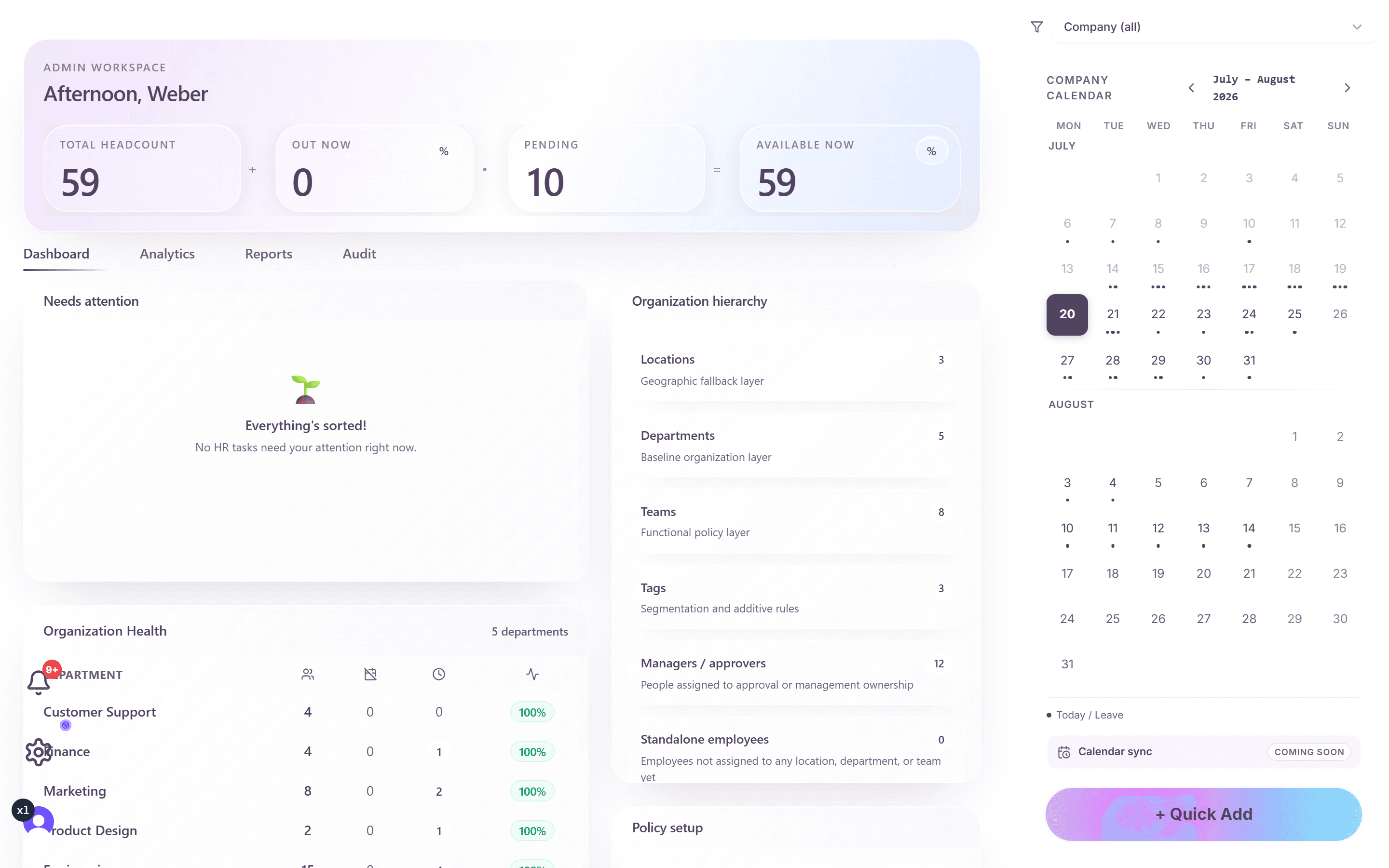
- You are redirected to the admin dashboard as the company owner.
If you were invited by e-mail instead, do not create a new company. Accept the invitation from the e-mail and you will join your employer's existing company.
What is set up automatically
Creating the company bootstraps a working configuration in the same step:
- Four roles with permissions: owner (you), admin, manager, and employee.
- Three starter leave types: Annual Leave (20 days), Sick Leave (unlimited, tracked separately), and Personal Day (3 days).
- A default year-end rule: full reset, no carry-over. You can change this later under Settings, Policy, Carry Over.
- Your own people record, so you appear in the People list from day one.
Important: starter policies are not assigned yet
The starter leave types exist, but they are deliberately not assigned to anyone: nobody has a balance until you assign a policy. This prevents wrong balances from appearing before you have decided your real rules.
Assign a policy to a location, department, team, or individual person from the Organization and People views in Settings; the priority order Person over Tag over Team over Department over Location decides which rule wins when several apply.
Recommended first steps
- Review the starter leave types under Settings, Policy, Leave Types: adjust days per cycle or create your own.
- Set up locations and holiday calendars under Settings, Location, so holidays never count against allowances.
- Invite your team, individually or via bulk CSV import.
- Take the guided admin tour from the avatar menu if you want a walkthrough of the dashboard.
Frequently asked questions
- Can I rename the company later?
- Yes. The company name is editable by the owner and admins in the account settings; nothing else depends on the initial spelling.
- Can there be more than one owner or admin?
- There is one owner (the creator), and you can grant the admin role to as many people as you need when inviting them or later from the People view.
- I created a company by mistake. I was supposed to join my employer.
- Ask your admin to send you an invitation to the correct company, and contact support to remove the accidental company.