Set out of office in Outlook
Before you leave, Outlook needs two things: an automatic reply so people who email you know when you are back, and a calendar block so nobody drops a meeting into your vacation. Both take a minute, and the exact clicks depend on which Outlook you use.
This guide covers new Outlook for Windows, classic Outlook, and Outlook on the web, plus how to stop setting the calendar part by hand for every trip.
New Outlook and Outlook on the web
- Click the gear icon (Settings), then "Account" and "Automatic replies".
- Switch "Turn on automatic replies" on.
- Check "Send replies only during a time period" and enter the first and last day of your absence, so the reply switches itself off when you are back.
- Use the checkboxes to block your calendar for that period, automatically decline new invitations, and cancel or decline meetings that fall inside it.
- Write the reply itself. If you want, add a second, more reserved version for people outside your organization.
- Click "Save".
The time-period option is the one people forget. Without it, the reply keeps firing until you remember to turn it off manually.
Classic Outlook (desktop)
- Open "File", then "Automatic Replies (Out of Office)".
- Choose "Send automatic replies" and set the start and end time.
- Write your message on the "Inside My Organization" tab, then optionally a second one on "Outside My Organization".
- Click "OK".
Automatic Replies requires a Microsoft 365 or Exchange account. With a POP/IMAP mailbox the button is missing; there you need an inbox rule that replies with a template, and your computer has to stay on for it to run.
Outlook mobile app
- Tap your profile picture in the top-left corner, then the gear icon to open Settings.
- Tap the account you want to set the reply for.
- Tap "Automatic replies" and switch it on.
- Write your message. You can reply to everyone or only to people in your organization, with separate texts for each.
- Tap the checkmark to save.
The mobile pane covers the essentials; the time-period scheduling and the calendar checkboxes live in the desktop and web versions, so set a longer absence there when you can.
Block the time in your Outlook calendar
- Create an all-day event across your absence dates.
- Set "Show as" to "Out of office", so colleagues see the slot as blocked instead of merely busy.
- If you skipped the automatic-replies calendar checkboxes, decline anything already scheduled in that window.
Keep the calendar part automatic
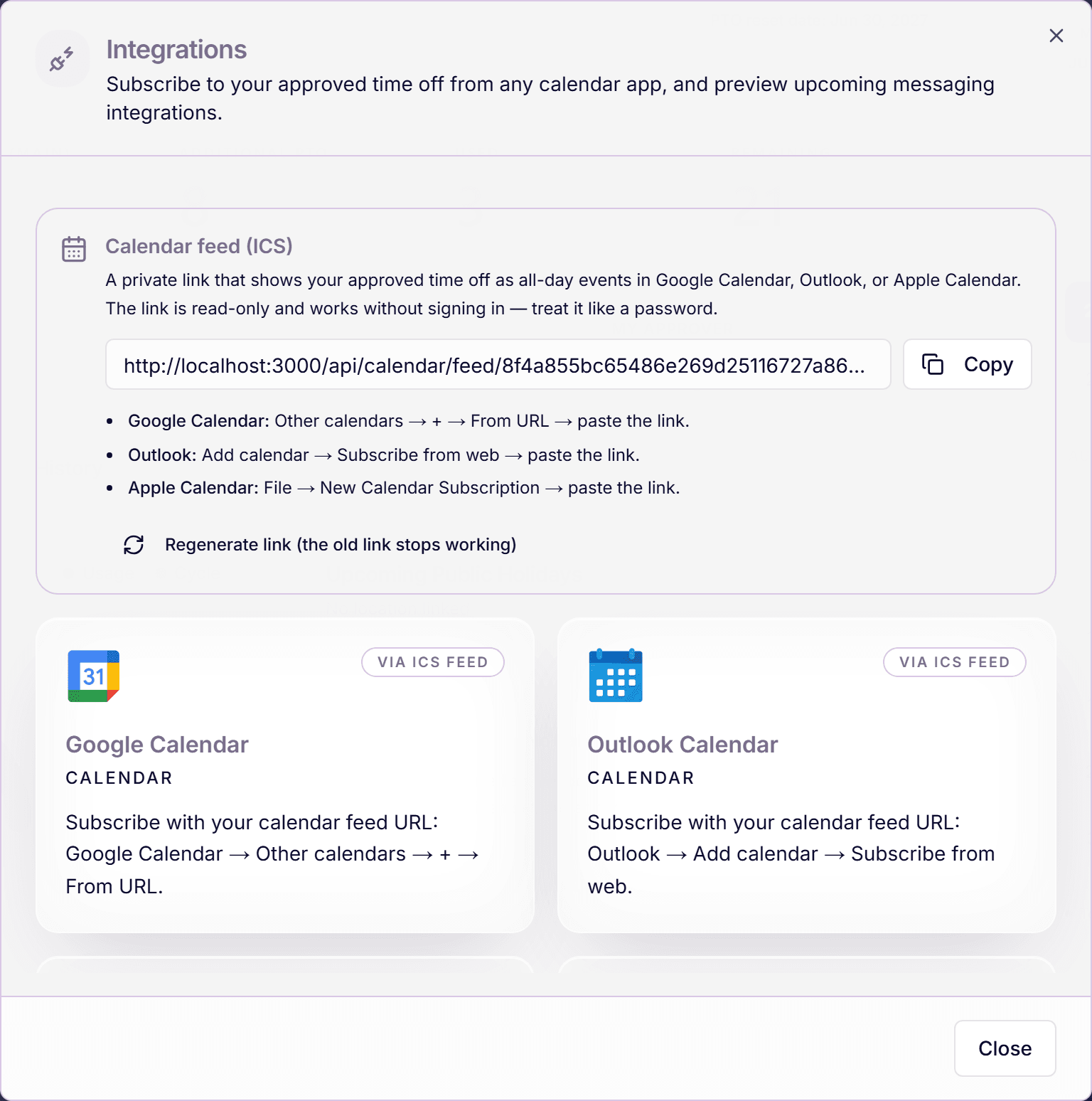
The automatic reply is a one-off, but the calendar block repeats with every single vacation. If your team tracks leave in Time Out Zone, subscribe to your personal ICS calendar feed once: every approved request then appears in your Outlook calendar as an all-day event by itself, for this trip and every one after it.
In Outlook, that is "Add calendar", then "Subscribe from web", then paste your private feed link.
Frequently asked questions
- Why can I not find Automatic Replies in my Outlook?
- The feature exists only for Microsoft 365 and Exchange accounts. If you connected a POP or IMAP mailbox (for example a private provider), classic Outlook hides the button; the workaround is an inbox rule with a reply template.
- Does the automatic reply also decline meeting invitations?
- Only if you tell it to. In new Outlook and Outlook on the web, the automatic-replies pane offers checkboxes to block your calendar, decline new invitations, and cancel existing meetings in the period. Classic Outlook sends replies only; handle the calendar separately.
- Can approved leave land in my Outlook calendar automatically?
- Yes. Subscribe once to your private ICS calendar feed from Time Out Zone; Outlook then shows every approved absence as an all-day event without any manual entry. The automatic reply itself still needs to be set in Outlook.
- Do I have to set out of office in Teams separately?
- No. Teams and Outlook share the same automatic-replies setting on your mailbox. Set the reply and the time period in either app and the other picks it up within a few minutes, including the out-of-office status on your Teams avatar.