Invite your team
People join your company by invitation. You can invite one person at a time or import a whole spreadsheet. Both paths create the same thing: a pending user with a profile and an invitation e-mail.
Invitations are sent from the People view of the settings modal on the admin dashboard.
Invite one person
- Open Settings from the admin dashboard and switch to the People view.
- Click "+ Add User". The "Invite a teammate" dialog opens.
- Fill in the required fields: work email, start date, and role (employee, manager, or admin). Managers additionally need a team.
- Optionally set an approver, location, team, job title, employee ID, tags, employment type, and weekly hours.
- Click "Send invitation".
The start date matters: waiting periods for new hires and tenure-based rules are calculated from it.
Bulk import from a spreadsheet
Bulk import uses the exact same pipeline as a single invite, so every imported person gets the same pending user, profile, and invitation e-mail.
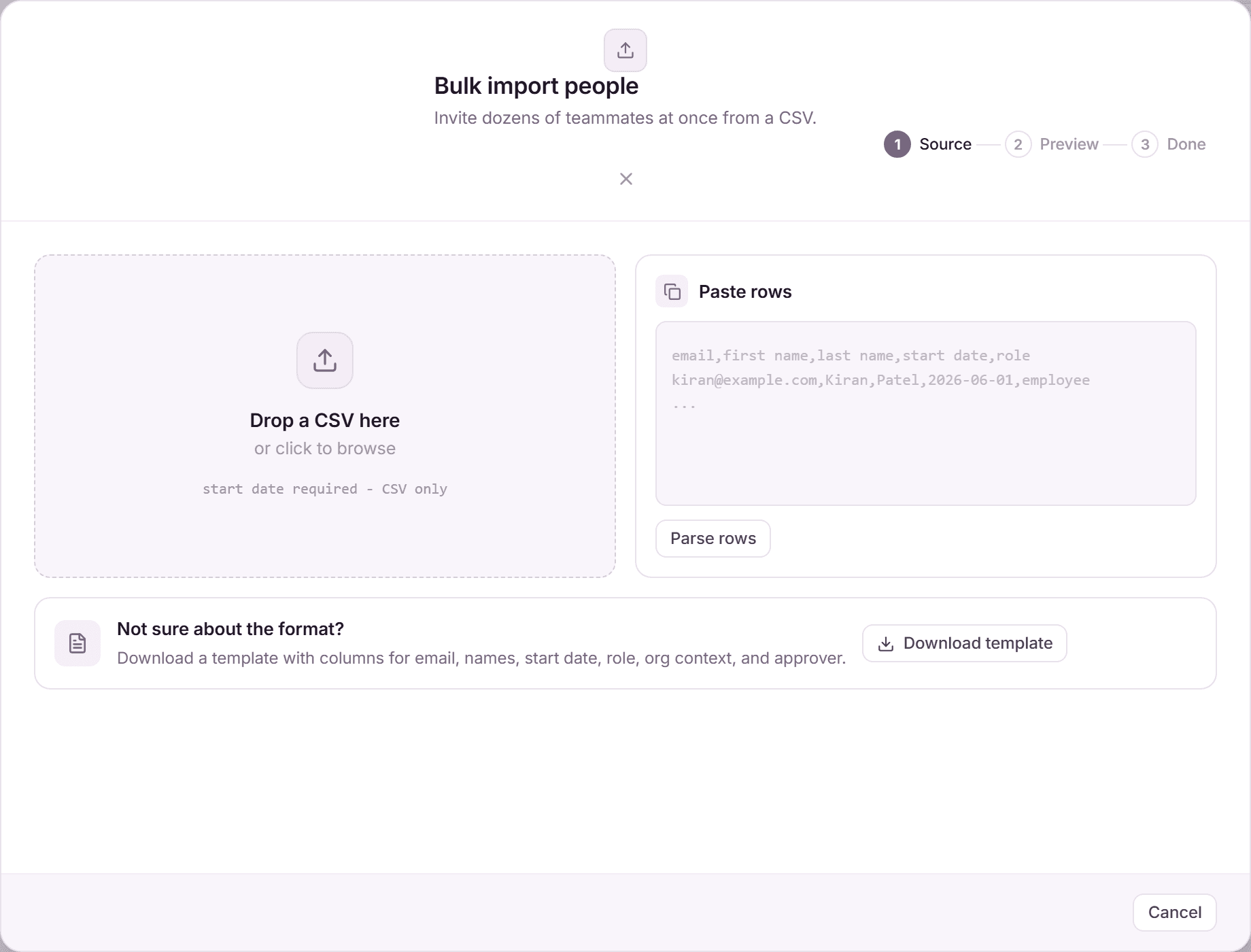
- In the People view, open the import (or click "Bulk import" inside the invite dialog).
- Drop a CSV file or paste rows. A template is available via "Download template".
- Review the preview: valid rows are marked ready, rows with problems are flagged with the exact error so you can fix and re-upload.
- Click "Send N invitation(s)" to send everything at once.
What the invited person experiences
- They receive an invitation e-mail with a personal link.
- The link opens the invitation page; signing in (or signing up) with the invited e-mail shows an "Accept Invitation" button.
- After accepting, they land on their dashboard: employees on the employee dashboard, managers on the manager dashboard.
- Expired, cancelled, or already-accepted invitations show a clear status page instead of an error.
Managing pending invitations
The invite dialog shows a pending list with a "View all" link. From there you can search by e-mail and, per invitation, resend it, copy the invite link, or delete it.
Frequently asked questions
- Can I change someone's role or team after they accept?
- Yes. Roles, teams, departments, locations, and approvers are all editable later from the person's profile in the People view. The invitation just sets the starting values.
- Do invited people have a balance immediately?
- Only if a policy applies to them: through their location, department, team, a tag, or a direct assignment. If no policy applies, their dashboard says so until you assign one.
- What happens if an invitation expires?
- Nothing is lost: the pending entry stays in the list and you can resend the invitation with one click.