Set up your first leave policy
A leave policy lives on a leave type: how many days per cycle, how they are earned, when the cycle resets, and what happens to unused days. You create and edit leave types in a two-step wizard, then assign the policy to the people it should cover.
Your company starts with Annual Leave (20 days) and Personal Day (3 days) ready to adjust, or create your own from scratch.
Open the wizard
- Open Settings from the admin dashboard and switch to the Policy view.
- Choose Leave Types.
- Click to add a new leave type, or open an existing one to edit it.
Sick Leave is a built-in system type, unlimited and tracked separately, so it does not appear in this list and needs no policy.
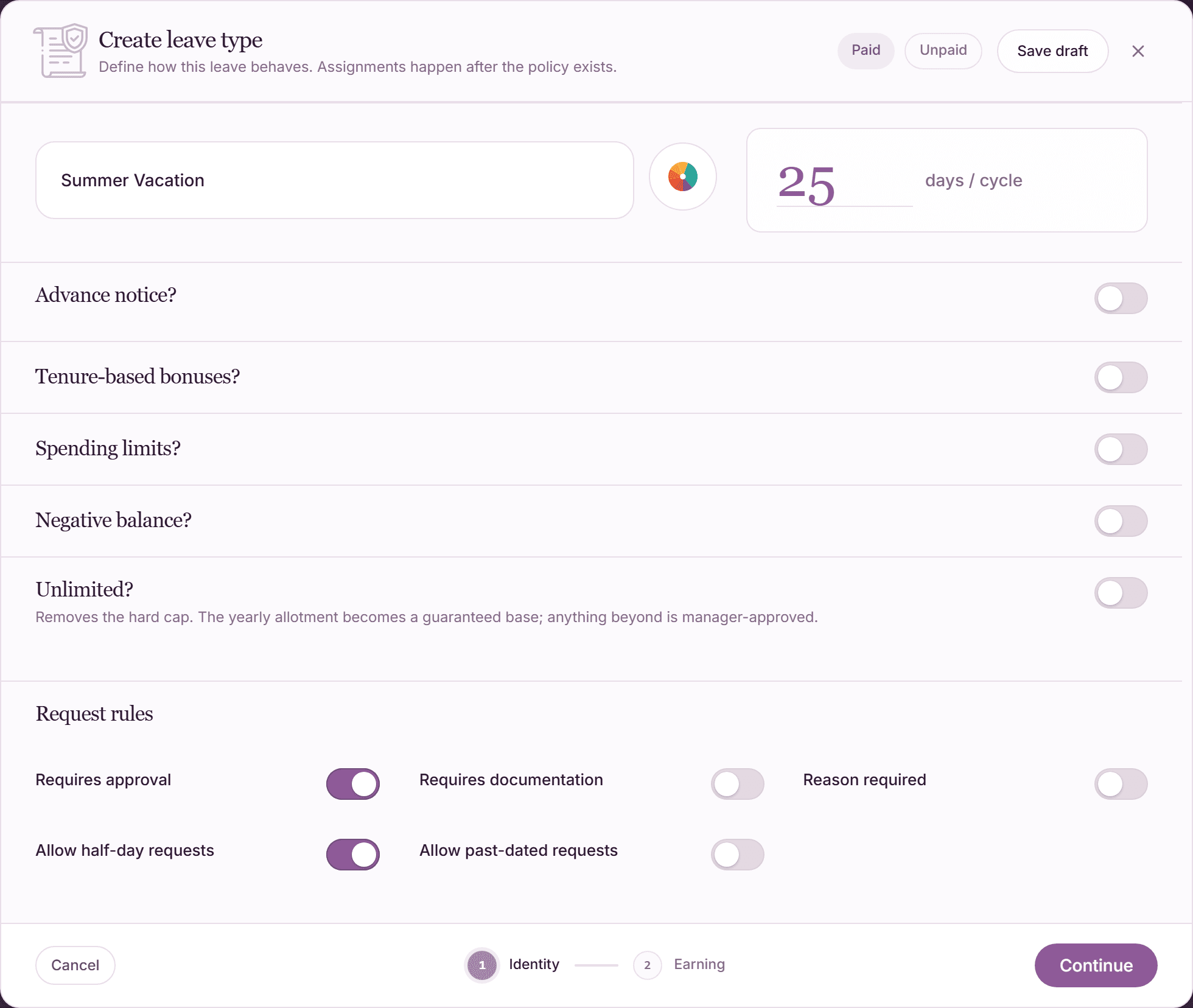
Step 1. Identity: what is this leave and who is it for?
- Leave name and the allotment in days per cycle (shown side by side, e.g. "25 days / cycle").
- Advance notice: minimum days of notice a request must give.
- Tenure scaling: extra days the longer someone stays.
- Spending limits: caps per period (e.g. max days per month).
- Negative balance: allow going below zero down to a defined floor.
- Unlimited: no fixed allowance; usage is tracked instead.
- Request rules: half-day requests, past-dated requests, and similar toggles.
Step 2. Earning: how is it earned, used, and carried over?
Click "Create policy" to finish (or "Save changes" when editing). Changing an existing policy recalculates affected balances automatically.
- Grant model: Lump (everything up front), Accrual (earned gradually), or Hybrid (a base up front, the rest accrued).
- Resets on: Calendar (January 1 for everyone) or Anniversary (each person's hire date).
- Accrual frequency: daily, weekly, biweekly, bimonthly, or monthly.
- Carry-over policy: what happens to unused days at cycle end: full reset, partial carry-over with caps and expiry, or payout variants.
- Waiting period for new hires and blackout periods.
Assign the policy: nobody has a balance until you do
Creating a leave type does not give anyone days. Balances appear when the policy is assigned, and you assign it at the level that fits:
- Location, department, or team: open the entity in the Organization (or Location) view and use "Assign Policy".
- A single person: open their profile in the People view and assign an employee-level override.
- A group across the org chart: assign the policy to a tag in Advanced Settings.
When several assignments apply to one person, the priority order is Person over Tag over Team over Department over Location. Every employee can see the winning rule and its source in their My Policy tab.
Frequently asked questions
- What is a sensible first setup?
- Most companies start with one annual-leave policy assigned at the location or company-wide department level, with a lump-sum grant and a simple carry-over cap. Refine per team or person later. The priority order handles exceptions cleanly.
- Can I change a policy after people already use it?
- Yes. Edits go through the same wizard, and affected balances are recalculated automatically. The change is also written to the audit trail.
- How do carried-over days expire?
- The carry-over policy can cap how many days carry over and set an expiry date (for example March 31). Employees see their expiring days and get reminders before anything lapses.