Approve or deny requests
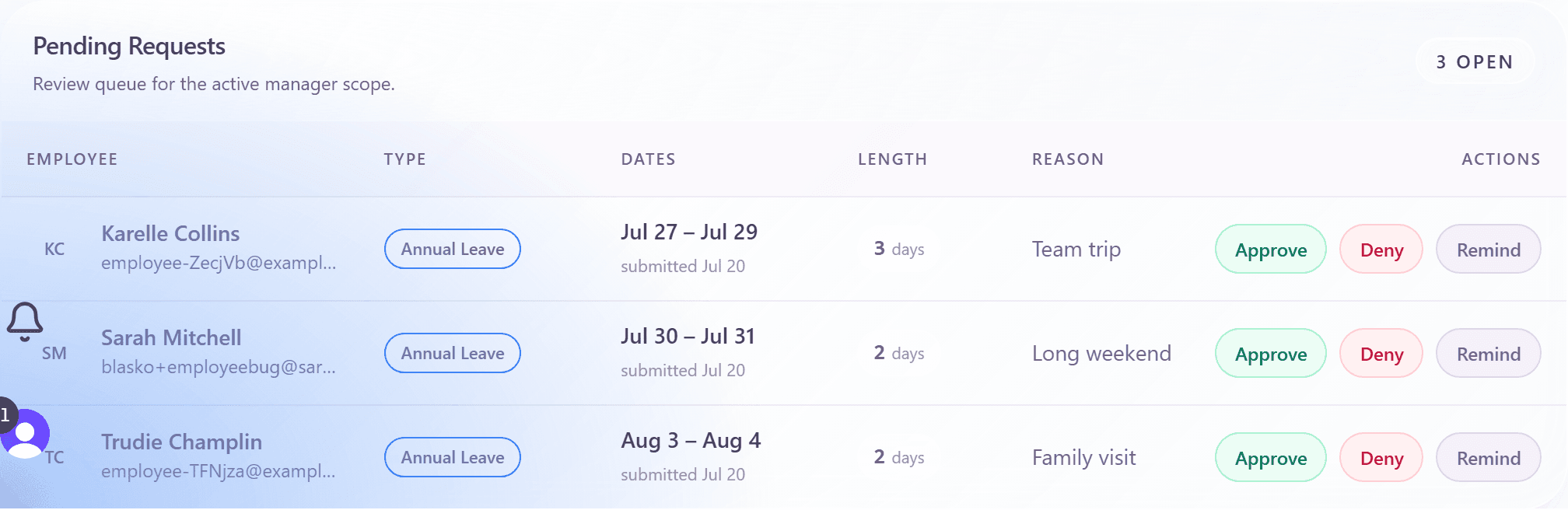
Requests waiting for your decision arrive in the "Pending Requests" queue on your manager dashboard. Each row offers three actions ("Approve", "Deny", and "Remind"), and the approve dialog shows everything you need to decide: balance impact, policy checks, documents, and coverage warnings.
Every decision is recorded in your Audit tab, so there is always a trail of who decided what, when, and why.
The pending queue
The queue lists each request with employee, leave type, dates, length, and reason. If other teams you manage have open requests, a toggle shows "N pending across all teams" so nothing slips through.
Approve a request
- Click "Approve" on the request row.
- Review the dialog: the approval impact on the employee's balance, the policy checks the request passed, and any supporting documents ("Open file").
- If a coverage warning appears (too many teammates out on those dates), decide whether to override it. The override is recorded.
- Optionally add a comment for the employee (and, in multi-step chains, for the next approver).
- Click "Approve Request".
In a multi-step chain the dialog shows "Approval progress · step X of Y" and tells you who is next, or "This is the final approval step."
Deny a request
- Click "Deny" on the request row.
- Enter the reason: it is required, and the employee sees it verbatim in their history.
- Click "Deny Request". The reserved days return to the employee's balance immediately.
Remind and multi-step details
- "Remind" nudges the current approver of a request, useful when a request sits in someone else's step. One reminder per request per 24 hours.
- When you are not the current actor of a multi-step request, the row shows "Review" instead of Approve, and the dialog explains whose step it is.
- A deputy acting for you sees the same queue; their comments are visible to the team and to you as the original approver.
- Decisions notify the employee in-app (and by e-mail if they enabled it).
Frequently asked questions
- Can I approve a request that exceeds the employee's balance?
- Only when their policy allows a negative balance. The dialog then shows how far below zero the approval takes them. Otherwise the request cannot be submitted in the first place.
- What happens if I do nothing?
- The request stays pending and keeps the days reserved. The employee can send a reminder, and the "Needs attention" widget on your dashboard surfaces requests that are waiting too long.
- Can I reverse a decision?
- An approved future request can be revoked: the days return to the employee's balance and they are notified. A denied request cannot be un-denied; the employee simply submits again.